3 Ways to Set Options for a Tk Themed Widget
Summary: in this tutorial, you’ll learn how to set options for a Tk themed widget using keyword arguments, a dictionary index, and config() method.
When working with themed widgets, you often need to set their attributes e.g., text and image.
Tkinter allows you to set the options of a widget using one of the following ways:
- At widget creation, using keyword arguments.
- After widget creation, using a dictionary index.
- And use the
config()method with keyword attributes.
1) Using keyword arguments when creating the widget
The following illustrates how to use the keyword arguments to set the text option for a label:
import tkinter as tk
from tkinter import ttkroot = tk.Tk()
ttk.Label(root, text='Hi, there').pack()
root.mainloop()
Code language: JavaScript (javascript)
Output:

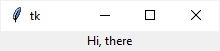
2) Using a dictionary index after widget creation
The following program shows the same label. However, it uses a dictionary index to set the text option for the Label widget:
import tkinter as tk
from tkinter import ttkroot = tk.Tk()
label = ttk.Label(root)
label['text'] = 'Hi, there'
label.pack()
root.mainloop()
Code language: JavaScript (javascript)
The following sets the text options for the label:
label['text'] = 'Hi, there'Code language: JavaScript (javascript)
3) Using the config() method with keyword attributes
The following program illustrates how to use the config() method to set the text option for the label:
import tkinter as tk
from tkinter import ttkroot = tk.Tk()
label = ttk.Label(root)
label.config(text='Hi, there')
label.pack()
root.mainloop()
Code language: JavaScript (javascript)
Summary
Ttk widgets provide you with three ways to set options:
- Use keyword arguments at widget creation.
- Use a dictionary index after widget creation.
- Use the
config()method with keyword attributes.